Track usage and credits
The MOVO AI Usage panel shows total session credit cost and a category breakdown. Video, image, music, and LLM usage are broken out separately so you can see exactly where credits went.
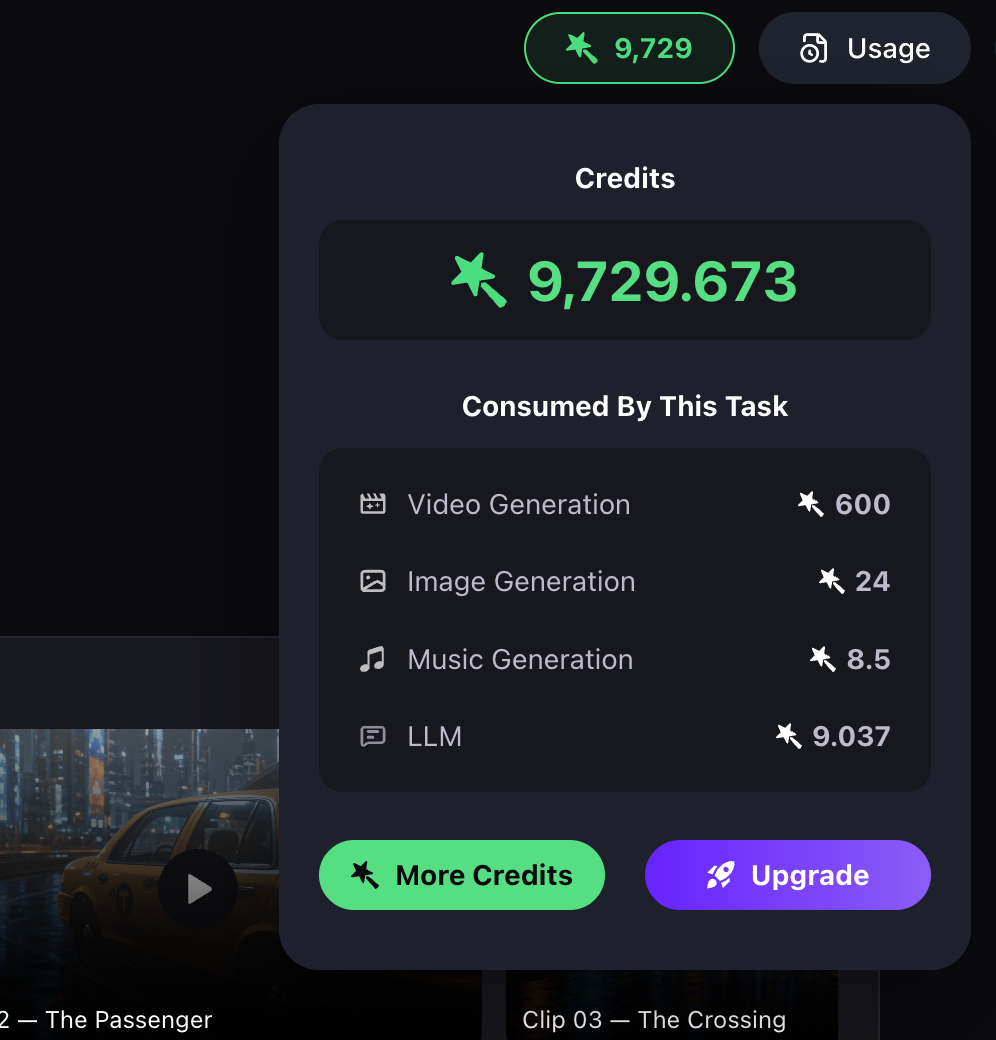
How to open the Usage panel
Click [Usage] in your workspace to review the credit consumption for the current session.
What the Usage panel shows
The Usage panel shows the total session cost and a categorized breakdown, which includes:
- Video generation.
- Image generation.
- Music generation.
- LLM usage — script writing, planning, and reasoning tasks.
How to use the Usage panel
Use this panel to understand where credits were spent and which production actions consumed the most credits. Over time, patterns emerge: video generation typically dominates for cinematic Projects, image generation dominates for asset-heavy stylized work, and LLM usage grows on longer scripts.
If video generation is eating your budget, add more approval checkpoints (Ask All mode) or revise the storyboard to reduce total shot count. If LLM usage is high, shorter briefs and tighter scripts help.
Next steps
Continue with the next part of the workflow:
Quick answers
How do I check my MOVO AI credit usage?
Click [Usage] in your workspace. The panel shows the total session cost and a categorized breakdown — video generation, image generation, music generation, and LLM usage.
What are the four credit categories in the Usage panel?
Video generation, image generation, music generation, and LLM usage (script writing, planning, and reasoning tasks).
Which action typically consumes the most credits?
Video generation is usually the largest single cost, followed by image generation. LLM usage is smaller but grows on longer scripts and complex briefs.
How can I reduce credit consumption?
Add more approval checkpoints (use Ask All mode), reduce the storyboard shot count where possible, keep briefs concise, and fix asset issues before rendering — regenerating one asset costs less than re-rendering shots.
Get 100 free credits