Choose your model configuration
Model configuration in MOVO AI is the set of image, video, and audio models a Project uses — locked at Project creation to keep every generation visually consistent. Change it only by creating a new Project.
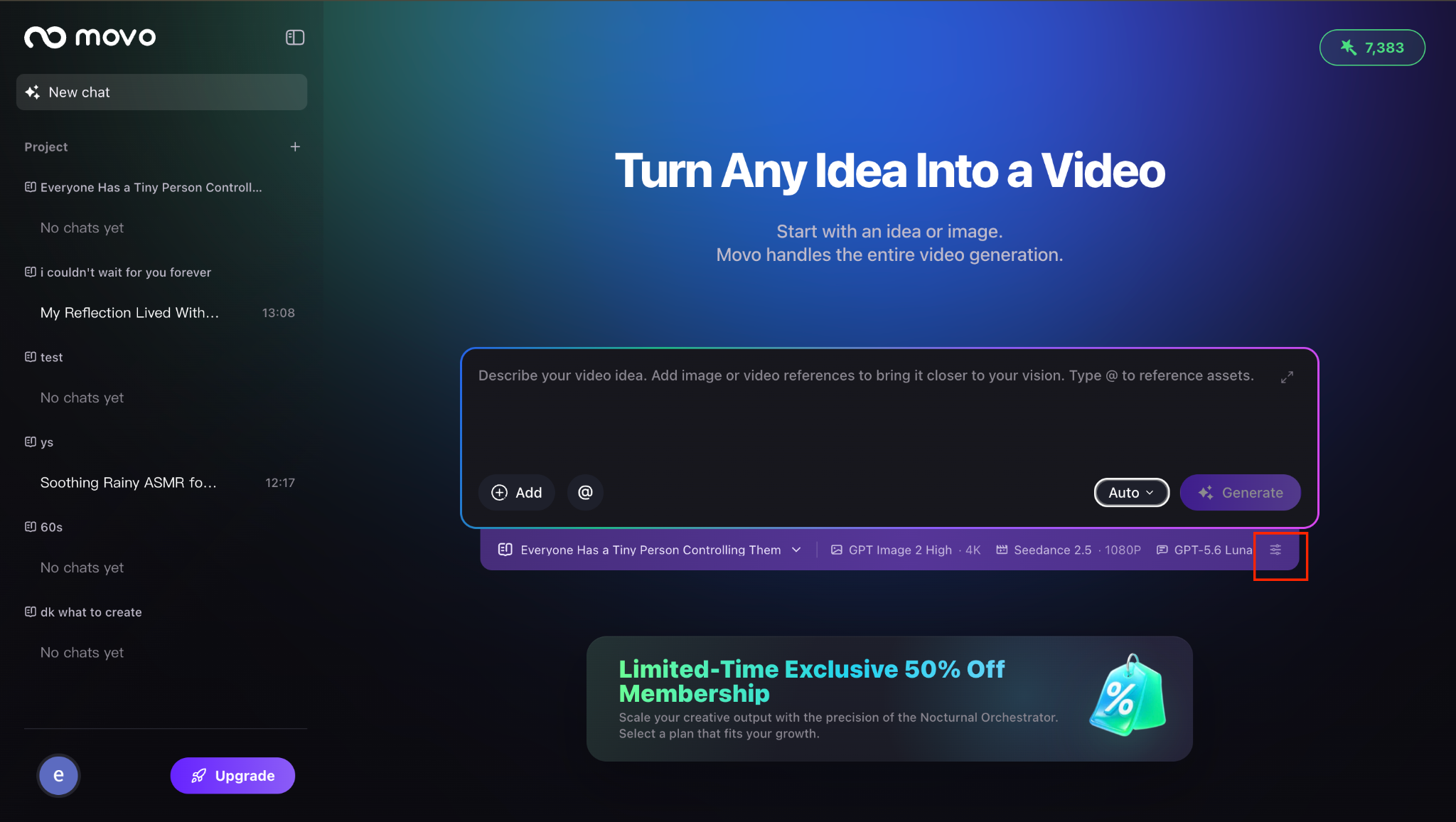
Step 1 · Open the model configuration panel
You can reopen the model configuration panel at any time by clicking the configuration button in the input area of your Project. This lets you review which model family is active for the current Project.
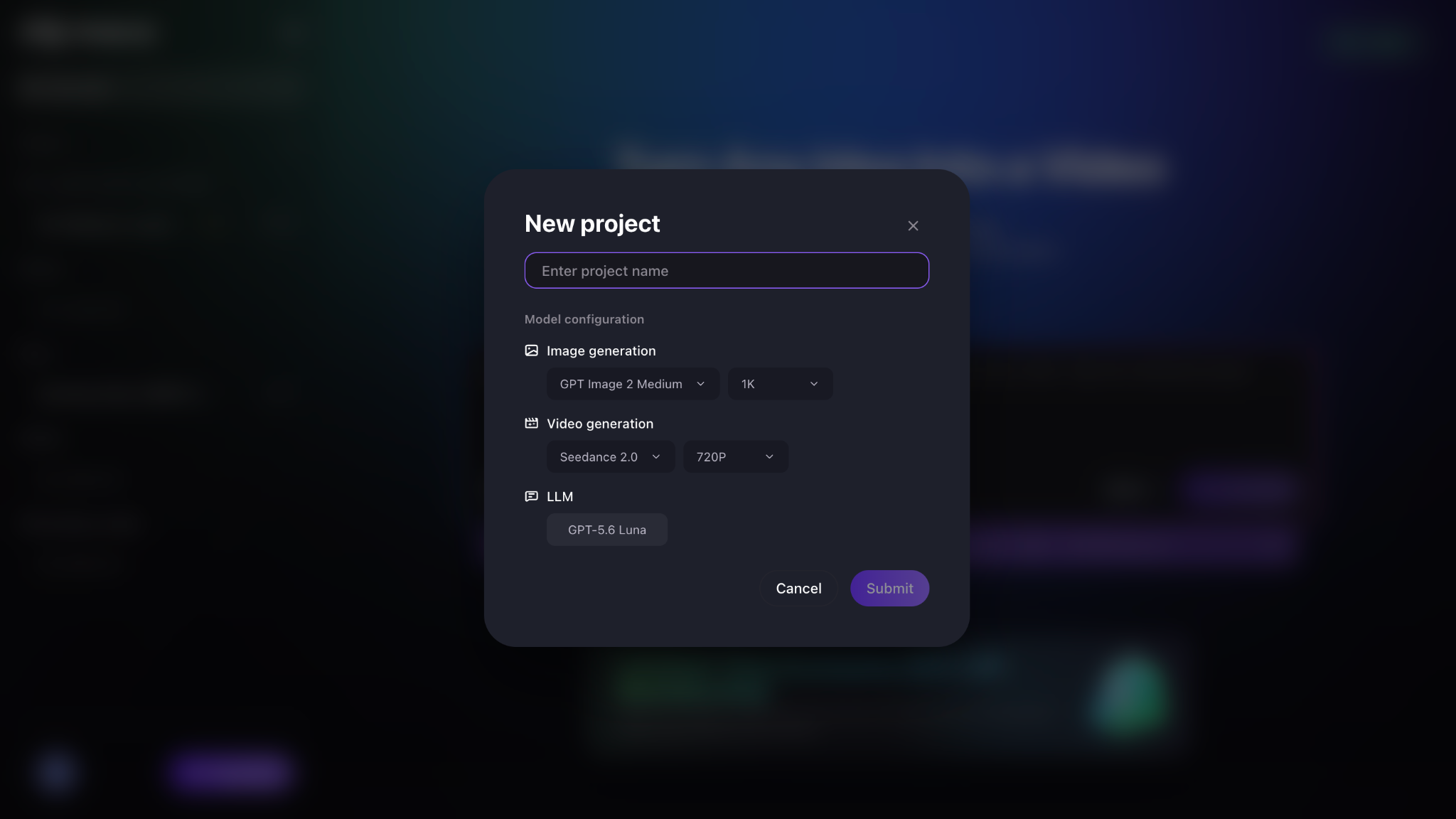
Step 2 · Select the configuration that fits your needs
Pick the configuration that best matches your production goal — for example, high-fidelity cinematic video, fast social-format iteration, or stylized image-first work. The selected configuration is applied to every task in this Project, so weigh quality, speed, and credit cost before confirming.
Why is the model configuration locked per Project?
Different model families have distinct visual signatures — character rendering, lighting, motion style, and audio texture all vary between them. Locking one configuration per Project ensures that every shot, asset, and audio clip you generate looks and sounds like it belongs to the same production. Mid-workflow model switching would break character identity, wardrobe continuity, and color grading.
What "locked" means in practice
- Image models — same character faces, same product renderings, same lighting logic across scenes.
- Video models — consistent motion, camera language, and temporal coherence across shots.
- Audio models — matching voice identity, tone, and background texture.
When you need a different model configuration
Create a new Project instead of switching mid-session. Cases where a fresh configuration makes sense:
- A new client, brand, or product with its own visual identity.
- A different format (e.g. switching from 9:16 social to 16:9 cinematic).
- A stylistic pivot — moving from photoreal to illustrated, or vice versa.
- A new character universe or story arc that should not inherit prior references.
Next steps
Continue with the next part of the workflow:
Quick answers
What is a MOVO AI model configuration?
It is the set of image, video, and audio models a Project uses. The configuration is locked when you create the Project so every generation — image, video, audio — stays visually and stylistically consistent.
Can I change the model configuration after a Project has started?
No. To use a different model setup, create a new Project. Switching mid-workflow would break character identity, wardrobe continuity, and visual style across shots.
How do I open the model configuration panel?
Click the configuration button in the input area of your Project. The panel shows the currently active configuration and lets you review or (before starting) change it.
Which model configuration should I pick?
Choose based on your production goal. Weigh output quality, generation speed, and credit cost. For cinematic long-form video, prioritize quality. For fast social iteration, prioritize speed. For image-first stylized work, pick an image-forward configuration.
Get 100 free credits