Browse session assets
The MOVO AI Assets panel shows every uploaded reference and generated asset in one place. Filter by images, videos, audio, or files — and reference any asset with @.
How to open the Assets panel
Click [Assets] to view every asset associated with the current session. Use the category tabs to filter:
- Images.
- Videos.
- Audio.
- Files.
- Other supported asset types.
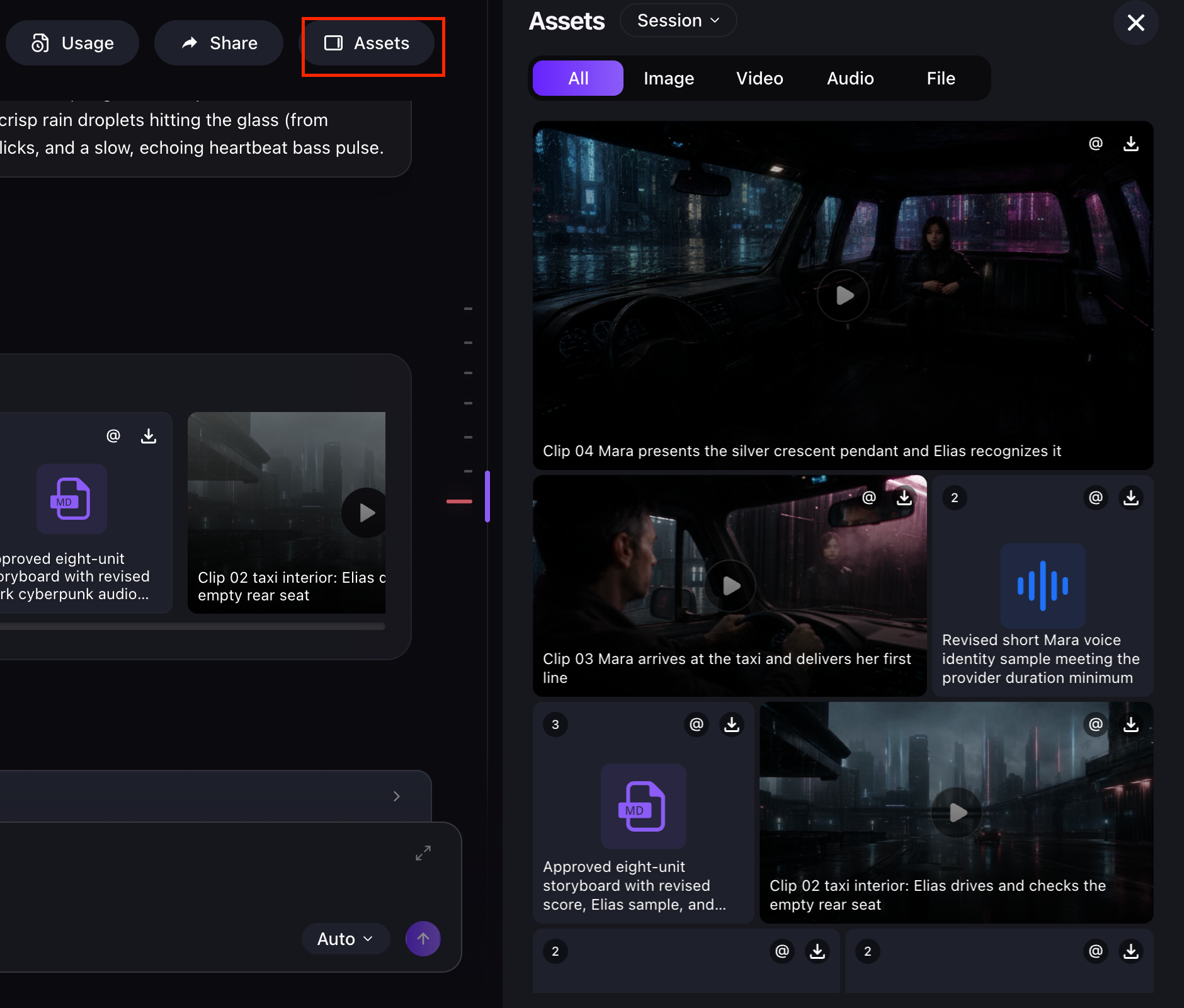
What you can do with the Assets panel
- Review uploaded references and MOVO AI-generated assets in one place.
- Confirm which character, product, background, voice, or clip is available.
- Reuse an existing asset without uploading it again.
- Compare different generated versions.
- Identify the source asset used for a particular shot.
- Troubleshoot character or product consistency issues.
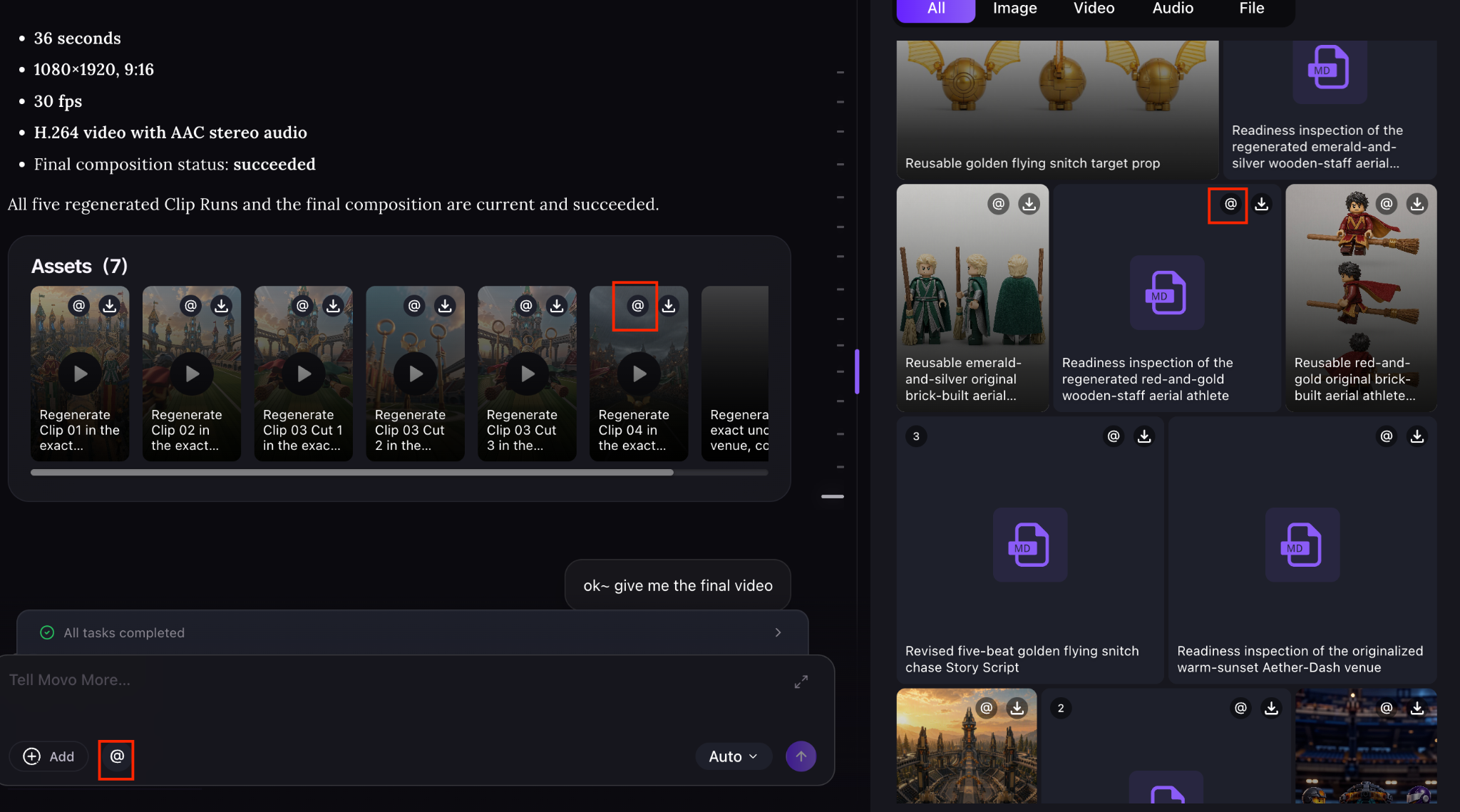
Reference assets with @
Click the [@] icon on any asset to add it directly to the chatbox as a reference. You can also type @ in the chatbox to browse and select available assets. Once added, tell MOVO AI exactly how you want the referenced asset to be used in your video.
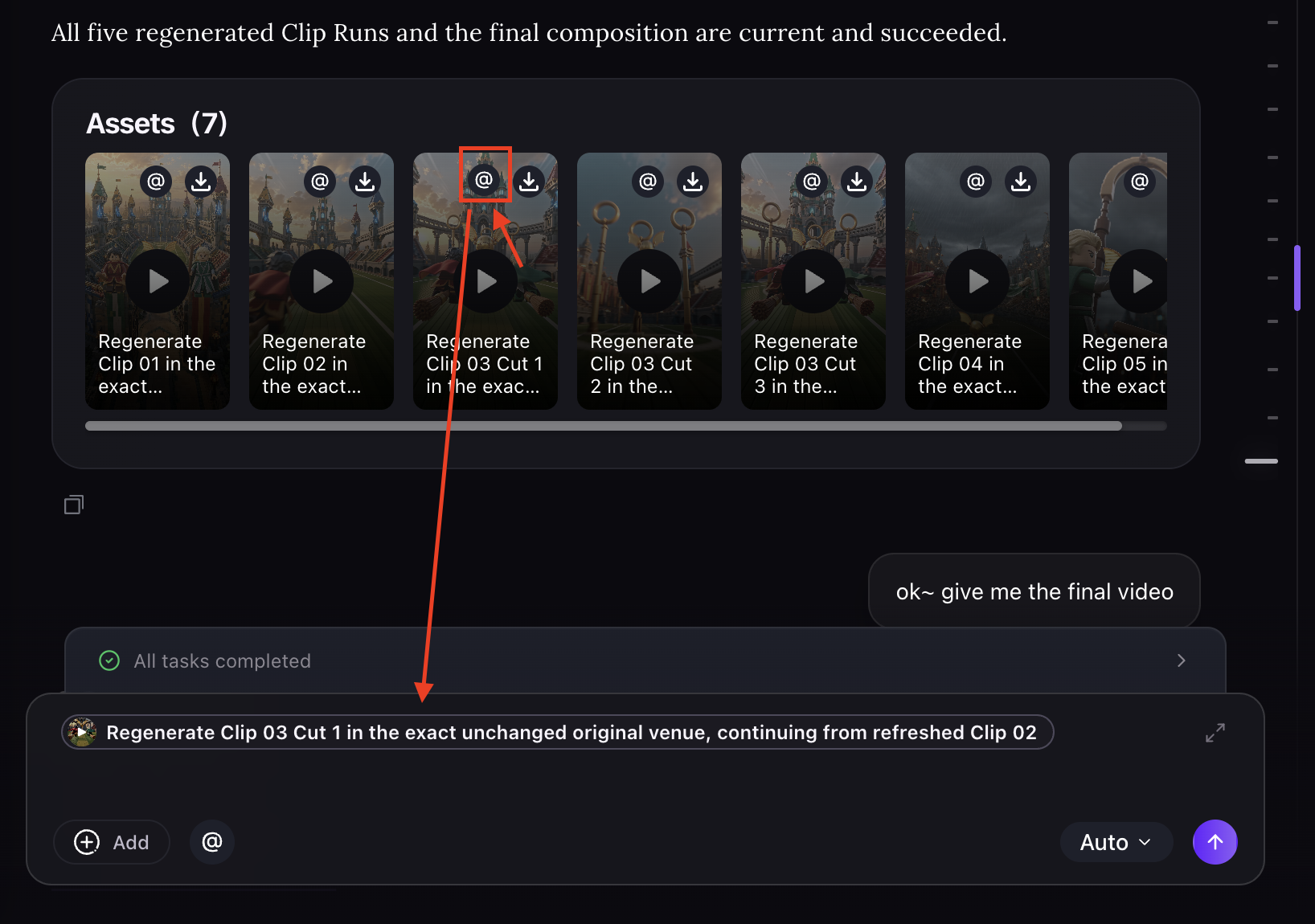
Instead of "use this", try "use @character-reference-3 only for close-up shots, and keep the wardrobe from @reference-image-1 in every scene". Precise references reduce regeneration.
Review Historical Runs
Open Historical Runs to review and compare previous generations of an asset. Each run shows the exact prompt and reference assets used, making it easier to understand how the result was created and revisit earlier versions.
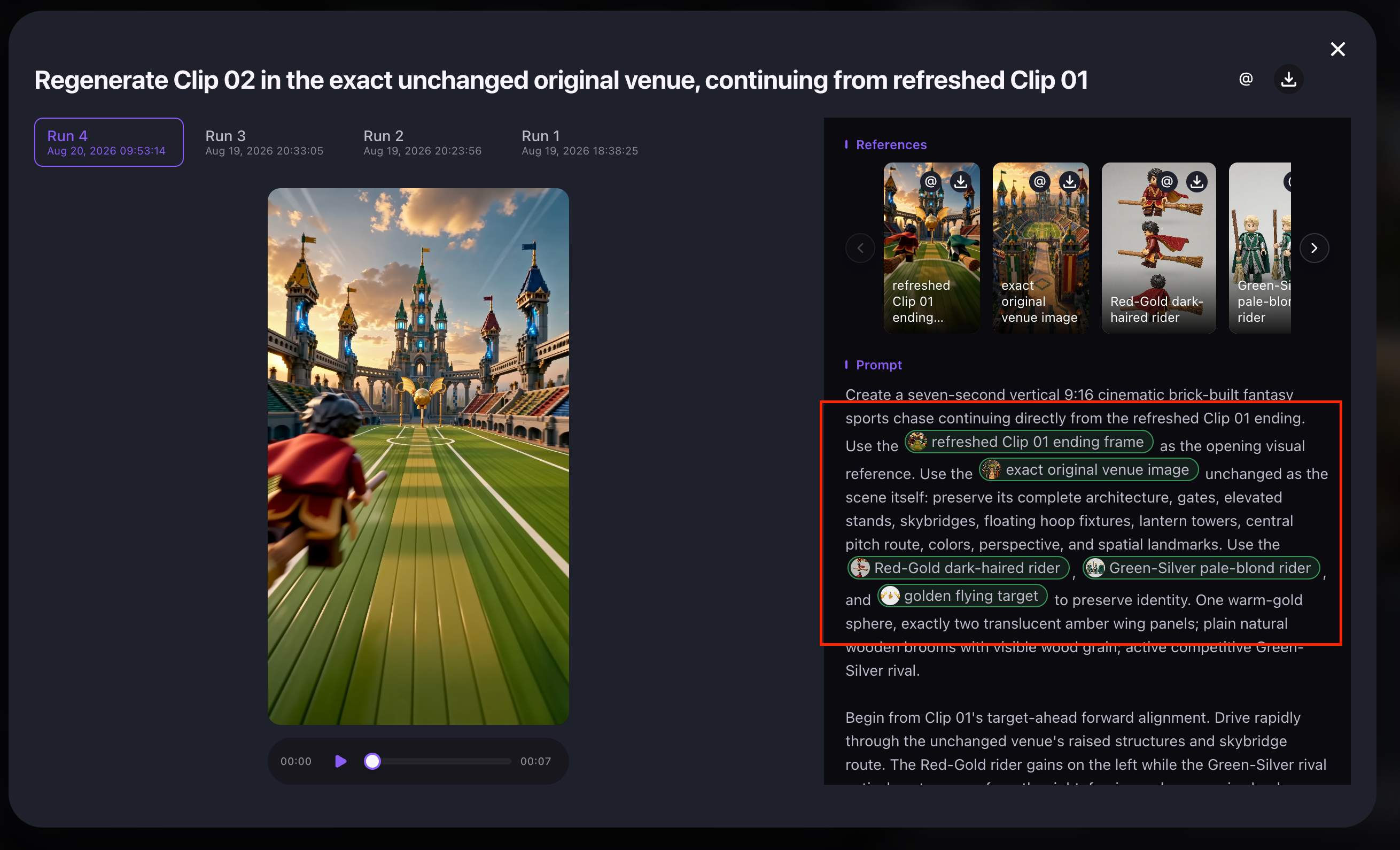
Switch between Session and Project assets
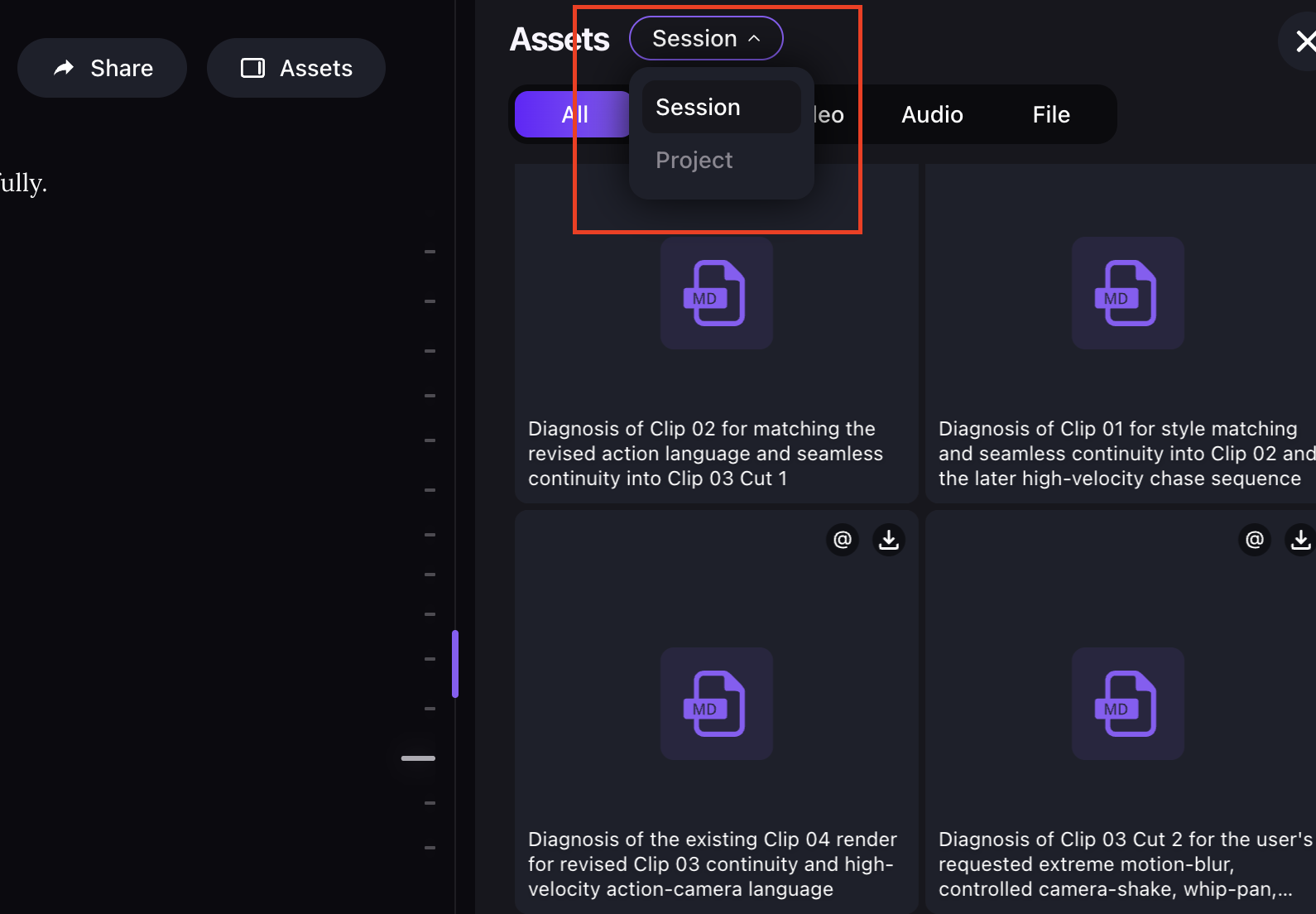
The Assets panel supports two views. Use the dropdown next to Assets to switch between them:
- Session — assets created or uploaded in the current conversation.
- Project — assets from every conversation inside this Project.
Use Project view when creating a sequel or follow-up video — it lets you reuse existing characters, products, scenes, and visual styles across episodes for consistent output.
Next steps
Continue with the next part of the workflow:
Quick answers
What is in the MOVO AI Assets panel?
Every asset from the current session — uploaded references and MOVO AI-generated images, videos, audio, and files. Filter by category to find what you need.
How do I reference an asset in the chatbox?
Click the [@] icon on the asset in the Assets panel, or type @ in the chatbox to browse and pick one. Once added, tell MOVO AI how the reference should be used.
Can I reuse an existing asset instead of uploading again?
Yes. Open the Assets panel, find the asset, and reference it with @ in your chat instruction. MOVO AI will use it without needing a re-upload.
How do I compare different generated versions of the same asset?
The Assets panel groups versions together. Open the item to compare, then decide which to reference in later shots with @.
What is the difference between Session and Project assets?
Session view shows only assets from the current conversation. Project view shows assets from every conversation inside the Project. Switch to Project view when creating a sequel or follow-up video so you can reuse existing characters, products, scenes, and visual styles.
Get 100 free credits