Track shot rendering
MOVO AI renders every video shot from the approved storyboard and assets — you track live progress through the To-do list. Continuity across shots is maintained automatically.
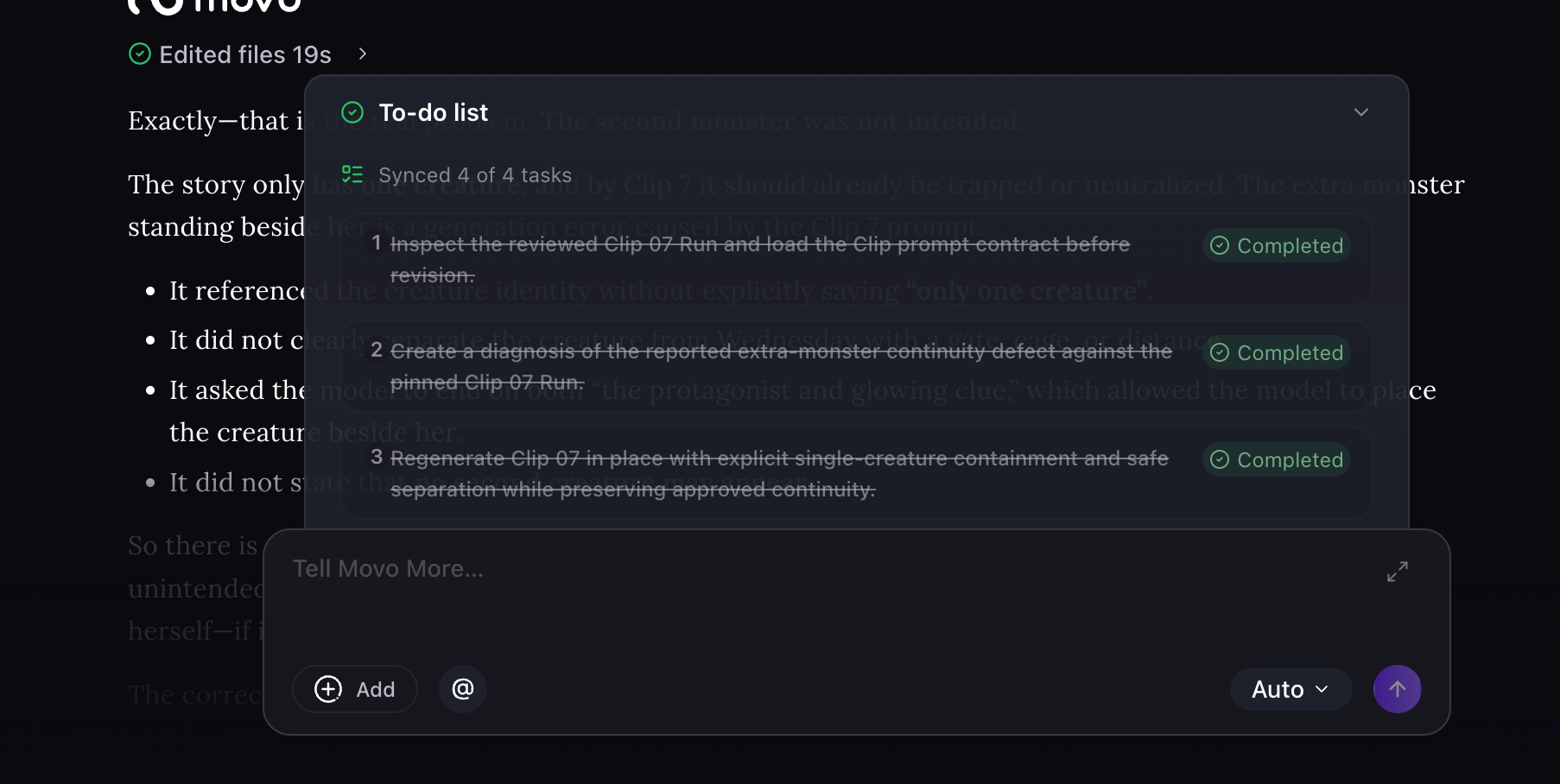
The To-do list is your rendering dashboard
Track MOVO AI's live rendering progress through the To-do list at the top of the panel. MOVO AI follows the approved storyboard and assets to generate each video shot while maintaining continuity throughout the sequence.
Task states in the To-do list
Use the To-do list to check whether each task is:
- Completed — shot rendered successfully, ready to preview.
- Currently generating — actively rendering.
- Waiting — queued behind earlier tasks.
- Pending approval — needs your decision before continuing.
- Failed — rendering failed; reserved credits returned.
When MOVO AI needs your input
If a task is waiting for approval or additional information, MOVO AI will not continue until you respond. Check the chat and the To-do list regularly during rendering to unblock the workflow.
A rendering session can stall for hours if an approval card is missed. Enable notifications or check back periodically for pending items.
Next steps
Continue with the next part of the workflow:
Quick answers
How do I track MOVO AI shot rendering progress?
Use the To-do list at the top of the panel. It shows every shot and its state — completed, currently generating, waiting, pending approval, or failed.
What does each To-do list state mean?
Completed = shot ready. Currently generating = actively rendering. Waiting = queued behind earlier tasks. Pending approval = needs your input. Failed = rendering failed, credits returned.
What happens if a shot fails to render?
The reserved credits are returned to your account. You can ask MOVO AI to retry the shot or revise the task before re-running.
Why did my rendering stall?
Most stalls are approval cards or asset requests waiting for you. Check the chat and the To-do list for tasks in the "Pending approval" state.
Get 100 free credits