Type continue to resume the workflow
When all visible tasks are done and MOVO AI does not display a next instruction or continue automatically, type continue in the chat. MOVO AI will move to the next unfinished task or final video delivery.
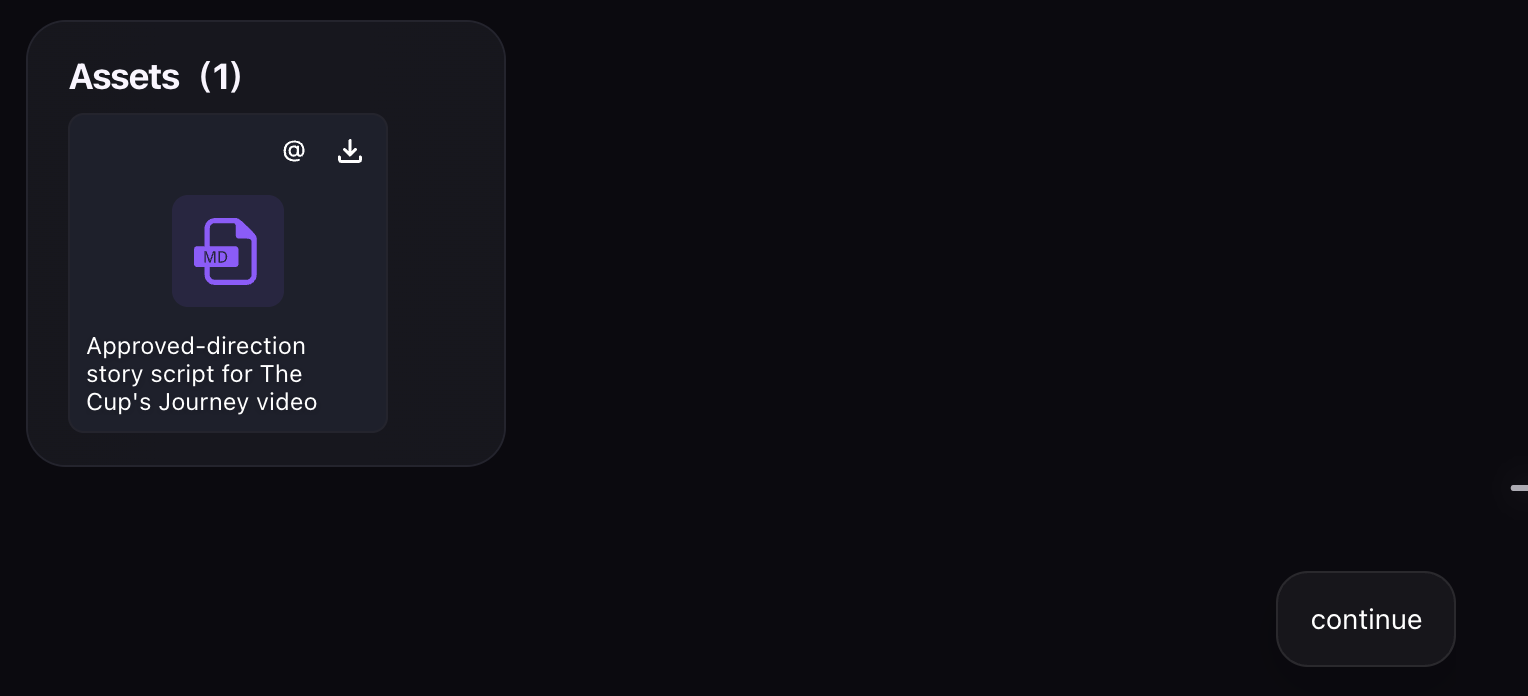
When to type "continue"
Use it when the session appears idle — all visible tasks are complete, no approval card is showing, and MOVO AI is not actively working on the next step. Type:
continue
If the workflow still does not continue
If typing continue does not move the session forward, check these places — one of them usually holds the block:
- The To-do list — a task in "pending approval" or "waiting" state.
- Pending approval cards — check the chat for cards you may have scrolled past.
- The main chat — MOVO AI may have asked a question waiting for a text answer.
- Missing asset requests — an asset the workflow needs may not have been uploaded.
- Failed generation tasks — some workflows halt on a failure until you retry or revise.
Next steps
Continue with the next part of the workflow:
Quick answers
How do I resume a stalled MOVO AI workflow?
Type "continue" in the chatbox. MOVO AI will check the current workflow and proceed to the next unfinished task or final video delivery.
Why is my MOVO AI session idle?
Usually a pending approval card, a task waiting for your input, a chat question needing an answer, a missing asset, or a failed generation task. Check the To-do list and the main chat.
Does typing "continue" cost credits?
The word itself does not cost credits, but the tasks it resumes will consume credits normally — subject to approval based on your operating mode.
What if "continue" does not unblock the workflow?
Check the To-do list for pending approval or waiting tasks, scroll the chat for missed approval cards or questions, verify all requested assets are uploaded, and retry any failed generation tasks.
Get 100 free credits