Edit or remove a Project
Rename a MOVO AI Project to keep your workspace organized, or remove Projects you no longer need. Review the Project and its sessions before removing to avoid losing work.
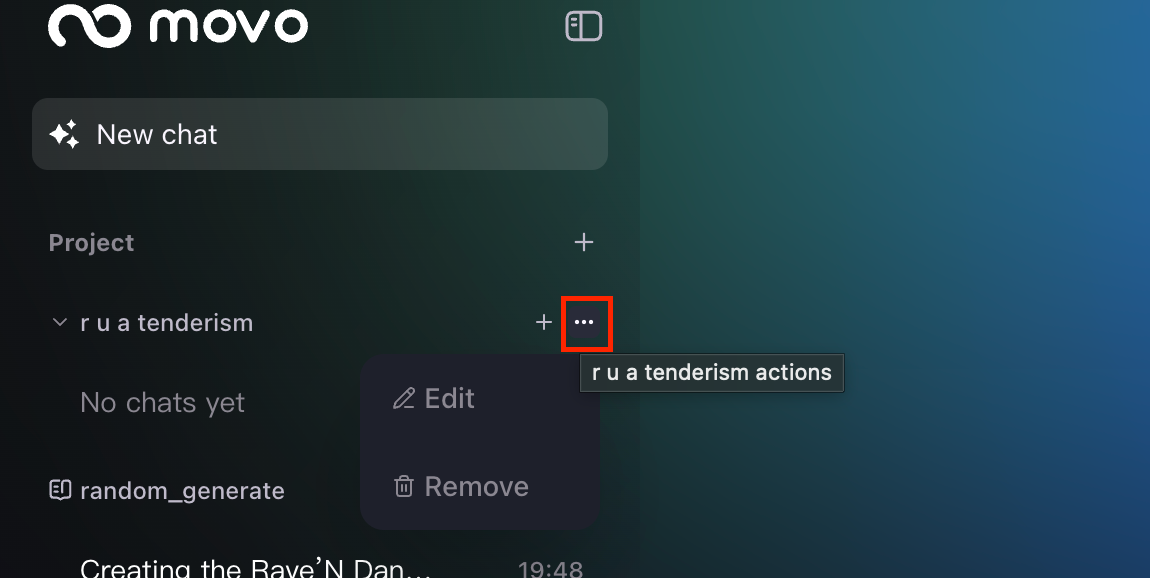
How to open the Project management menu
Click the [...] icon beside a Project name in the left sidebar to open the Project management options.
Edit · Rename your Project
Rename the Project so it remains easy to identify. Use consistent Project names based on the campaign, product, format, or episode number — this pays off as your workspace grows and searching for a specific Project becomes harder.
Pick a format like [Campaign] · [Format] · [Episode] and reuse it. Example: Summer Fragrance · 9:16 · Ep 02.
Remove · Delete a Project
Select Remove only when you intend to delete the entire Project. Review the Project and its sessions before confirming — generated assets, script versions, and asset libraries are lost with the Project.
Sessions, generated assets, and asset libraries inside the Project are deleted. If you might revisit any of it, export or archive before removing.
Recommended Project organization
Keep one coherent production, campaign, or series inside each Project. Create a new Project when any of the following changes significantly:
- Model configuration.
- Brand.
- Product.
- Character universe.
- Visual direction.
- Production objective.
Next steps
Continue with the next part of the workflow:
Quick answers
How do I rename a MOVO AI Project?
Click the [...] icon beside the Project name in the left sidebar and choose Edit. Use a consistent naming convention (campaign, format, episode number) so it stays findable as your workspace grows.
How do I delete a MOVO AI Project?
Click the [...] icon beside the Project name and choose Remove. Review the Project and its sessions first — deletion is permanent and removes all generated assets, scripts, and asset libraries.
What is lost when I remove a Project?
All sessions, generated assets, script versions, and asset libraries inside the Project. Export anything you might revisit before confirming removal.
When should I create a new Project instead of reusing one?
When the model configuration, brand, product, character universe, visual direction, or production objective changes significantly. Keep one coherent production per Project.
Get 100 free credits